ALLPCB


How to handle touchscreen leakage and ghost touches
If a touchscreen exhibits leakage or ghost touches, try the following methods:
- Clean the screen: Use a soft microfiber cloth to gently wipe the touchscreen surface. Ensure the screen is clean and free of dirt, grease, or other contaminants. Debris can cause ghost touches or false inputs.
- Calibrate the touchscreen: Calibrating can help correct ghost touches or inaccurate input. Locate the touchscreen calibration option in the device settings and follow the instructions.
- Restart the device: Some touchscreen issues are caused by temporary software faults. Restart the device to see if the problem is resolved.
- Check the screen protector: If a screen protector is used, make sure it is not damaged or loose. A damaged protector can interfere with the touch signal, causing leakage or ghost touches.
- Check touchscreen connections: If you have the required technical skills, verify that the touchscreen connector is secure. This may require opening the device to inspect the cable between the touchscreen and the mainboard.
- Update or reset software: Install system updates to ensure the operating system and touchscreen drivers are current. If the issue persists, consider a software reset or factory restore after backing up important data.
If these steps do not resolve the issue, seek professional repair support or contact the device manufacturer for further troubleshooting.
Causes of intermittent touchscreen behavior
Touchscreens that work intermittently may be affected by one or more of the following common causes:
- Software issues: Problems with the operating system, driver failures, or driver conflicts can cause intermittent touchscreen response.
- Dirt or grease: Contaminants on the touchscreen surface, such as fingerprints, grease, or debris, can reduce sensitivity or accuracy and interfere with touch signal transmission.
- Touchscreen hardware faults: Hardware failures such as damaged circuit boards, failed touch sensors, or a faulty touch controller chip can lead to unstable or nonfunctional touch behavior.
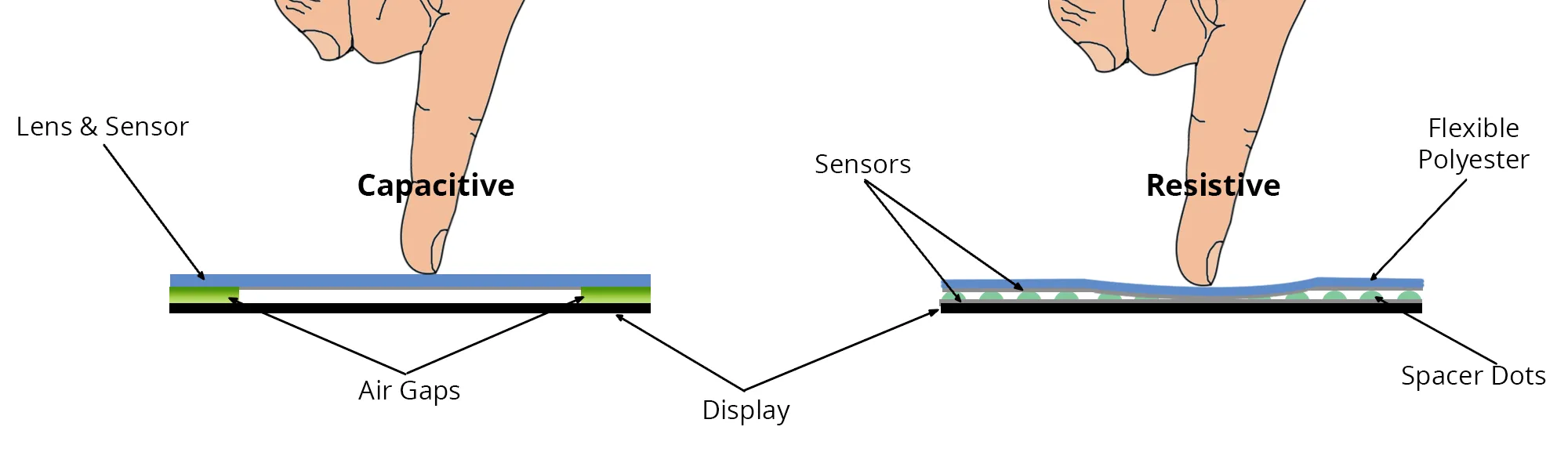
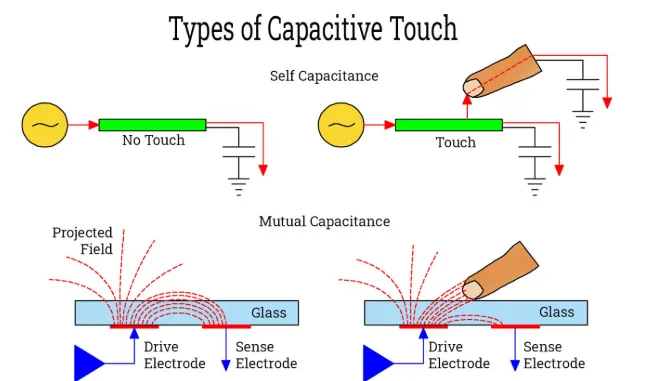
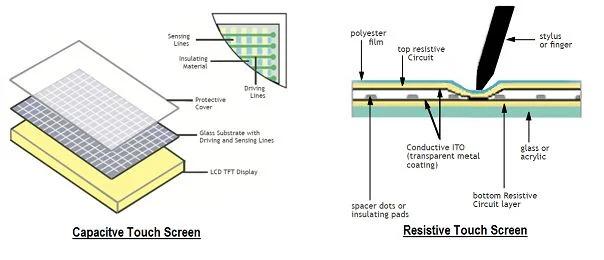
- Temperature and humidity: Touchscreens—especially capacitive types—are sensitive to extreme temperature and humidity. Environmental extremes can cause intermittent response.
- External interference: Electromagnetic radiation, electrostatic discharge, or other nearby wireless devices can interfere with touch signal transmission and cause instability.
To rule out software or surface-level causes, try cleaning the screen, recalibrating the touchscreen, updating software, or resetting the device.
Common touchscreen repair methods
- Clean the touchscreen: Wipe the surface with a soft microfiber cloth to remove dirt, fingerprints, and grease. Avoid using excessively wet or strong chemical cleaners that could damage coatings.
- Recalibrate the touchscreen: Use the device settings to recalibrate the touchscreen following the provided instructions. This can correct some calibration-related issues.
- Inspect connection cables: If you have technical experience, open the device and check that touchscreen cables are secure and undamaged. Reconnecting or replacing cables can resolve faults caused by loose connections.
- Replace the touchscreen: If the touchscreen hardware is irreparably damaged, replacing the touchscreen module may be necessary. This typically requires careful disassembly and precise installation of the new module.
Note: Touchscreen repair can be complex. Proceed carefully to avoid further damage to the device or the touchscreen module.