ALLPCB


Introduction
From phones and tablets to laptops, all-in-one computers, and smart TVs, touchscreens have become a dominant interface on consumer electronics, changing how people interact with devices. Where physical keys such as T9 or QWERTY once prevailed, advances in touch technology have led to large-screen touch devices becoming mainstream. On smartphones the touchscreen has matured to the point of matching or surpassing physical keys in usability, accelerating the decline of button-based phones. Tablets, which also rely primarily on touch input, have further encroached on the traditional PC market.
Perceived Responsiveness vs Hardware Capability
Users across age groups now use touchscreen devices for more intuitive interaction, but hardware capability alone does not guarantee a smooth experience. Some low-cost devices with seemingly high specifications still suffer noticeable lag or stuttering. In many cases the touchscreen, rather than raw CPU or memory, becomes the limiting factor in perceived responsiveness.
Capacitive Touchscreen Structure
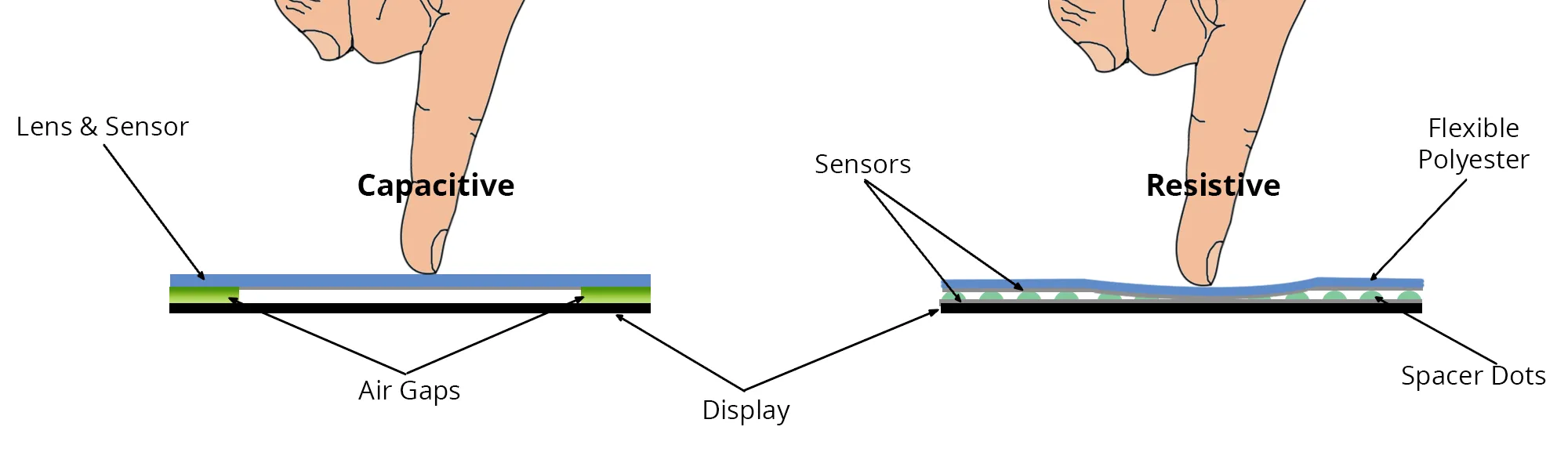
Capacitive touchscreens are the most widely used solution for modern consumer devices because of their maturity and performance. Although the transparent panels look similar externally, their internal structure determines their sensitivity and responsiveness, which directly affects human-machine interaction quality.
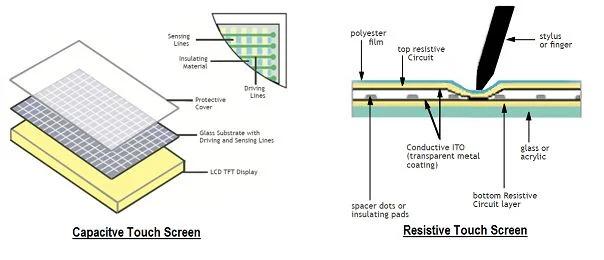
A common analogy likens a capacitive touchscreen to a sandwich on a plate. The "plate" is the layer closest to the device electronics and acts as a shield to prevent electrical interference. The top and bottom "bread" layers are non-conductive glass that provide protection. The "filling" between the bread layers is the functional layer that senses the human electric field and detects touch points. The quality of this internal layer largely determines whether a device delivers a smooth user experience.
Working Principle
Inside a capacitive touchscreen, driving electrodes emit low-voltage, high-frequency signals that are sensed by receiving electrodes, creating a stable current. When a finger touches the screen, the body provides a reference to ground and forms an equivalent capacitance with the panel. A portion of the high-frequency signal flows through this equivalent capacitance to ground, reducing the charge detected at the receiving electrode. The closer the finger is to a driving electrode, the greater the reduction. The touch location is determined from the change in received current. In multi-touch systems, the screen is divided into regions with independent mutual-capacitance modules so multiple touch points can be detected simultaneously.
Contact Diameter and Sensitivity
The internal sensing layer determines both sensitivity and response time. Sensitivity is influenced by a parameter called contact diameter. A touchscreen can be conceptually divided into many small, equally sized regions; the contact diameter is the distance between the centers of adjacent regions. Smaller contact diameters yield higher detection accuracy. Some screens require the full pad of the finger to register, while higher-sensitivity panels can detect a single fingertip or a small-capacitance stylus.
For reference, Microsoft specified a minimum contact diameter of 9 mm for Windows 8 touch support. That requirement implies users may need to press more firmly or present a larger contact area to ensure reliable detection. When using a stylus or a capacitive pen with a tip smaller than the finger pad, a touchscreen with a larger contact diameter may produce intermittent or missing input, so smaller contact diameters generally indicate better touch performance.
Response Time
Response time is another major factor affecting perceived touch quality. When drawing or writing on a screen with a finger or stylus, there is often a visible gap between the input tip and the displayed trace. If touch response time is long, the displayed content will lag behind quick finger or pen movements, degrading the user experience during fast interactions such as scrolling, handwriting, or sketching.
Microsoft's guidance for Windows 8 sets a maximum response time of 50 ms. While many devices meeting the baseline requirements for preinstalled Windows 8 comply with this limit, a 50 ms response may only be sufficient rather than optimal. Faster response times reduce apparent lag and improve the immediacy of touch interactions.
Examples and Techniques
Some device implementations reduce contact diameter and improve signal-to-noise ratio through circuit and firmware techniques. For example, certain laptop models use a touchscreen with a 5 mm contact diameter, which can provide uninterrupted finger gestures and more accurate stylus input compared with a 9 mm baseline. Other approaches include signal amplification and frequency hopping to increase signal-to-noise ratio and shorten response time. Devices using these techniques may achieve response times around 30 ms, compared with the 50 ms baseline.
Practical Considerations
Hardware quality remains a crucial part of the input pipeline. Because many capacitive touchscreens look similar externally, visual inspection alone cannot reveal performance differences. A high-quality touchscreen can complement other hardware and software to provide a smooth experience, while a poor touchscreen can limit an otherwise capable system. When evaluating touchscreen devices, especially large-screen laptops or tablets, it is advisable to test touch responsiveness and accuracy in person before purchase.