ALLPCB


Basic Principle
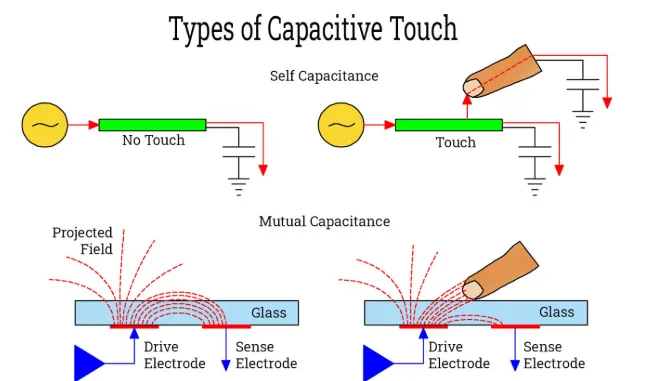
Capacitive screens implement multi-touch by increasing the number of mutual-capacitance electrodes. In simple terms, the screen is divided into zones, and each zone contains an independent mutual-capacitance module. The screen can therefore detect touches in each zone separately and, after processing, support multi-touch.
Structure of a Capacitive Touch Panel
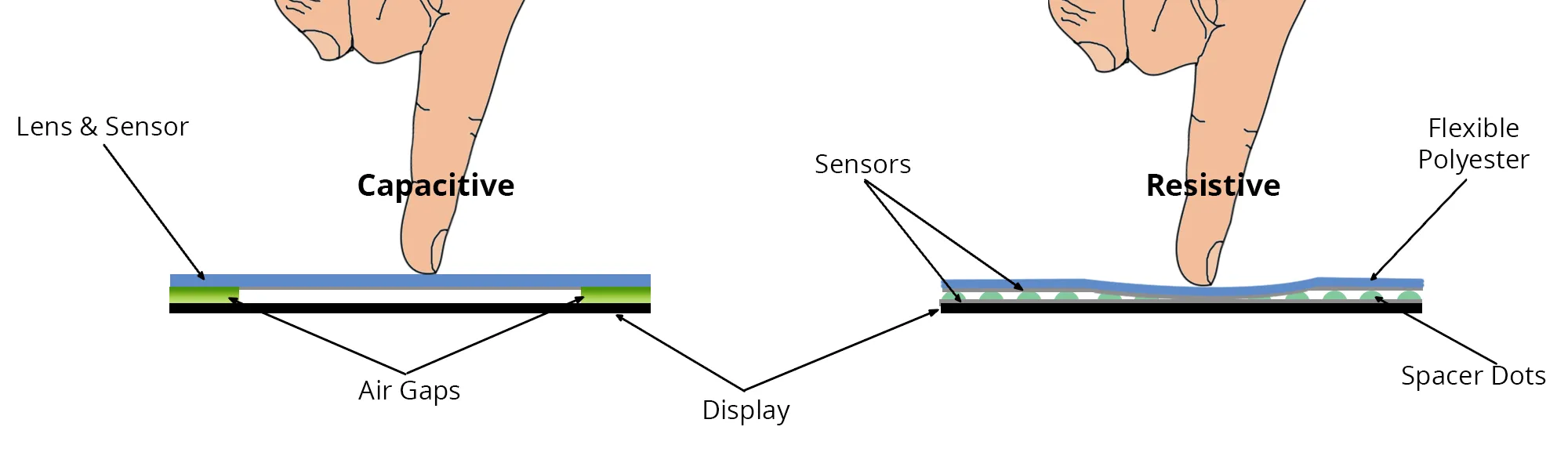
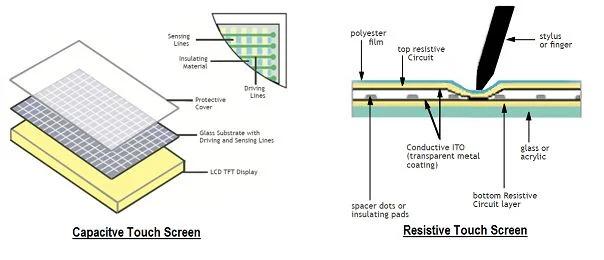
The capacitive touch technology, CTP (capacitive touch panel), operates by sensing the body's electrical current. A capacitive screen is a four-layer laminated glass panel. The inner surface and the interlayer each have an ITO coating (indium tin oxide). The outermost layer is a silica glass protective layer 0.0015 mm thick. The interlayer ITO coating serves as the active surface, with four electrodes routed to the corners; the inner ITO layer provides a reference layer to maintain proper operating conditions.
How Touch Is Detected
When a user touches a capacitive screen, the finger and the active surface form a coupling capacitance due to the body's electric field. Because a high-frequency signal is applied to the active surface, the finger draws a very small current. This current flows out through the four corner electrodes, and in theory the currents through the electrodes are proportional to the distances from the finger to the corners. The controller computes the position by precisely calculating the ratios of the four currents. Accuracy can reach about 99% with response times under 3 ms.
Projected Capacitive Panels
Projected capacitive panels are made by etching conductive trace patterns into two ITO-coated glass layers. The patterns on the two layers are perpendicular and act as continuously varying bars in the X and Y directions. Intersections of X and Y traces form capacitive nodes. One set of traces can be used as drive lines and the other as sense lines. When a drive line carries a signal, an external capacitance change induces a change at the capacitive nodes on the other layer. The change in sensed capacitance is measured by connected electronics and converted to digital signals by an A/D controller to compute the X,Y coordinates.
Optical Performance and Artifacts
Capacitive touchscreens generally offer higher transmittance and clarity than four-wire resistive screens, but they do not necessarily match surface acoustic wave or five-wire resistive screens. Capacitive panels can be highly reflective, and the four-layer laminated structure exhibits uneven transmittance across wavelengths, which can cause color distortion. Reflections between layers may also blur text and images.
False Touches and Environmental Effects
Capacitive screens effectively use the human body as one electrode of a capacitor. When a conductive object approaches and couples sufficient capacitance with the interlayer ITO active surface, the resulting current can cause false touches. Capacitance is inversely proportional to electrode spacing, proportional to overlapping area, and depends on the dielectric constant. Therefore, a large-area palm or a conductive object near the screen, without touching it, can trigger false activations. This is more pronounced in humid conditions; holding the monitor, a palm within 7 cm, or a body within 15 cm of the screen can induce false activations.
Capacitive screens do not respond to gloved hands or non-conductive objects, since the additional insulating layer prevents coupling. A significant issue is drift: changes in ambient temperature, humidity, or surrounding electric fields can cause drift and reduce accuracy. The outer silica protective glass offers good scratch resistance but is vulnerable to punctures from fingernails or hard impacts; damage to the interlayer or inner ITO layers during impact or handling will cause the panel to malfunction.
Calibration and Driver Guidance
Before first use, install the required drivers according to the product manual, then run the screen calibration utility (for example, Start > Programs > Microtouch Touchware) and follow the calibration procedure. After calibration, the system stores calibration data in the controller registers, so subsequent restarts normally do not require recalibration.
If the display resolution or mode is changed, or the touchscreen controller's refresh frequency is adjusted, and the cursor no longer corresponds to touch points, recalibrate the touchscreen system. To ensure reliable operation, besides installing the correct software, avoid installing two or more touchscreen drivers on the same host, as driver conflicts can prevent the touchscreen from functioning properly.
Resistive and Surface Acoustic Wave Panels: Related Issues
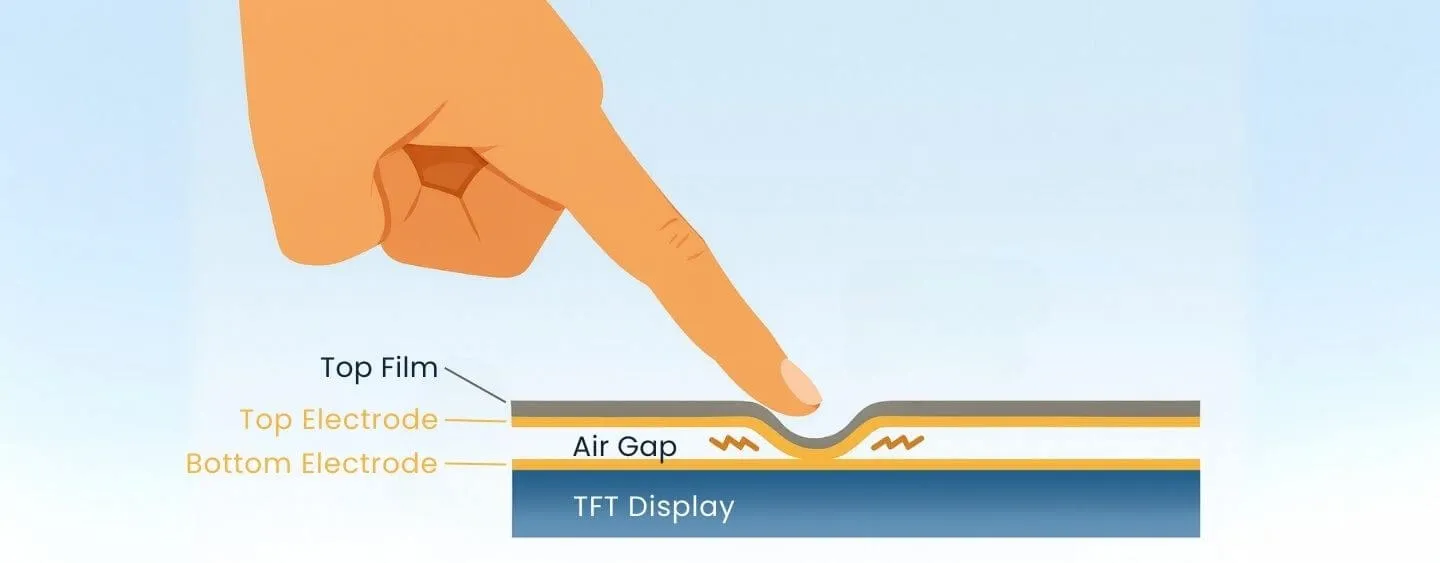
For resistive touchscreens, if the cursor does not move or only moves within a local area, check whether the touch area is being continuously pressed by another object. For example, if the panel is pressed by the monitor bezel or cabinet, it will report a constant touch at that point and return inaccurate coordinates to the controller.
Surface acoustic wave touchscreens require cleaner environments. Dust on the panel, especially on the reflective stripes or transducers, will affect accurate positioning and should be cleaned periodically. Avoid water droplets or soft debris on the touch surface, as they can be interpreted as touches and cause incorrect input.
Cleaning and Restoring Responsiveness
To clean contaminants, use a soft dry cloth or a suitable cleaner and wipe carefully from the screen center outward, or use a soft cloth moistened with isopropyl alcohol or glass cleaner. If a surface acoustic wave panel responds sluggishly to touches, the system may be outdated, the internal clock frequency may be too low, or moving water droplets may be present. To restore responsiveness, upgrade or replace the system, or wipe the panel dry.
Mechanical Interference Remedies
If a finger touch on a capacitive touchscreen produces no response, the touch mapping may be inaccurate and the cursor cannot be properly positioned. If the cabinet is pressing the touch area, increase the distance between the cabinet and the display. If the monitor bezel is pressing the touch area, try loosening the bezel screws slightly to eliminate mechanical pressure.