ALLPCB


Touchscreens are frequently used and can develop faults over time. Below are common faults and maintenance methods organized by touchscreen type.
1. Surface Acoustic Wave (SAW) Touchscreen
Fault 1: Touch offset
Symptom 1: The touched point does not align with the mouse cursor.
Cause 1: During driver installation and calibration, the calibration target was not touched precisely at its center.
Solution 1: Recalibrate the touchscreen and ensure each target is pressed at the center.
Symptom 2: Touch is accurate in some areas but offset in others.
Cause 2: Dust or limescale has accumulated on the acoustic wave reflector strips around the edges, disrupting signal transmission.
Solution 2: Clean the touchscreen, paying particular attention to the reflector strips around the edges. Disconnect the touchscreen controller power before cleaning.
Fault 2: No touch response
Symptom: Touching the screen produces no cursor movement.
Possible causes include:
- Heavy accumulation of dust or limescale on the acoustic reflector strips.
- Touchscreen hardware fault.
- Touchscreen controller card fault.
- Faulty touchscreen signal cable.
- Computer serial port fault.
- Operating system fault.
- Incorrect touchscreen driver installation.
Troubleshooting steps:
- Check the touchscreen signal indicator LED. Normally it flashes regularly (about once per second). While touching, the LED should stay on; it should return to flashing after releasing.
- If the LED is constantly on without touch, first check whether the touchscreen needs cleaning. Then verify that the hardware serial port number matches the software setting and that the computer serial port is functioning.
- Run the COMDUMP utility from the driver disk. This is a DOS command. Execute COMDUMP followed by a space and the serial port number (1 or 2), then touch the screen and observe whether data appears. If data is returned, the hardware connection is OK and you should check software settings and conflicts with other devices. If no data appears, a hardware fault is indicated.
- Run the SAWDUMP utility from the driver disk. This DOS program queries the controller type, connected port number, and baud rate, then reads data from the controller. Check the AGC values for the X and Y axes in the lower-left corner of the screen. If either axis reports 255, the corresponding transducer has failed and needs repair.
- When performing the first calibration after driver installation, note any system error messages such as "control card not found" or "touchscreen not connected" and inspect the indicated components, e.g. verify that the touchscreen signal cable is firmly connected to the controller and that the keyboard power cable is connected to the host.
- If the problem remains unresolved, consult qualified service personnel for repair.
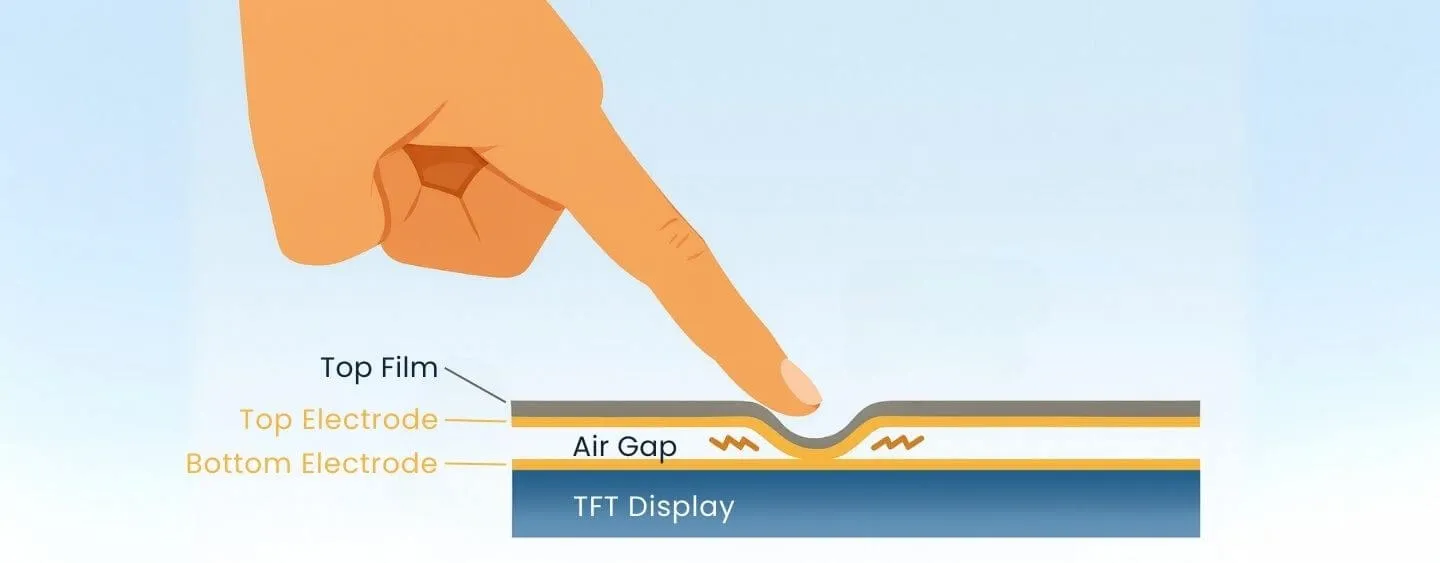
2. Five-Wire Resistive Touchscreen
Fault 1: Touch offset
Symptom 1: The touched point does not align with the mouse cursor.
Causes:
- During calibration after driver installation, the calibration target was not pressed at its center.
- Poor contact or an open circuit in the touchscreen signal cable.
Solutions: Recalibrate; locate and repair the break or reconnect the cable; replace the touchscreen if necessary.
Symptom 2: With no touch, the mouse cursor remains at a fixed position; when touching, the cursor appears midway between the touch point and the fixed position.
Cause: A foreign object is pressing on the active area of the five-wire resistive touchscreen.
Solution: Remove the object pressing on the touchscreen active area.
Fault 2: No touch response
Symptom: Touching produces no cursor movement.
Possible causes:
- Touchscreen hardware fault.
- Touchscreen controller fault.
- Faulty signal cable.
- Computer serial port fault.
- Operating system fault.
- Incorrect driver installation.
Troubleshooting steps:
- Check the signal indicator LED. Normally it flashes regularly (about once per second). While touching, the LED should remain on and return to flashing after release.
- If the LED is constantly on without touch, check for objects pressing the touchscreen, then verify that the hardware serial port number matches the software setting and that the computer serial port is functioning.
- Run the COMDUMP utility from the driver disk as described earlier. If data appears when touching, the hardware connection is OK; check software settings and device conflicts. If no data appears, hardware failure is likely. If data appears without touching, inspect for objects pressing the active area.
- During the first calibration after driver installation, watch for system error messages such as "control card not found" or "touchscreen not connected" and inspect the indicated components. If unresolved, consult qualified service personnel.
3. Infrared Touchscreen
Fault 1: Touch offset
Symptom: Touched point does not align with the mouse cursor.
Cause: During calibration after driver installation, the calibration target was not pressed at its center.
Solution: Recalibrate the touchscreen precisely.
Fault 2: No touch response
Symptom: Touching the screen produces no cursor movement.
Possible causes:
- Dust or foreign objects accumulated on the frame around the touchscreen.
- Touchscreen hardware fault.
- Faulty signal cable.
- Computer serial port fault.
- Operating system fault.
- Incorrect driver installation.
Troubleshooting steps: Clean the touchscreen and frame; check that the signal cable and power cable connections are secure; verify the host port is functioning and that the operating system and driver installation are correct. If the issue persists, consult qualified service personnel for repair.